


In MT4, there are exactly two ways to set take profit and stop loss on an order: fill them in when placing the order, or right-click the order afterward to modify it. Below I'll break down every step so you can just follow along on your screen.
In MT4, there are exactly two ways to set take profit and stop loss on an order: fill them in when placing the order, or right-click the order afterward to modify it. Below I'll break down every step so you can just follow along on your screen.
First, take a minute to understand: what exactly are stop loss and take profit?
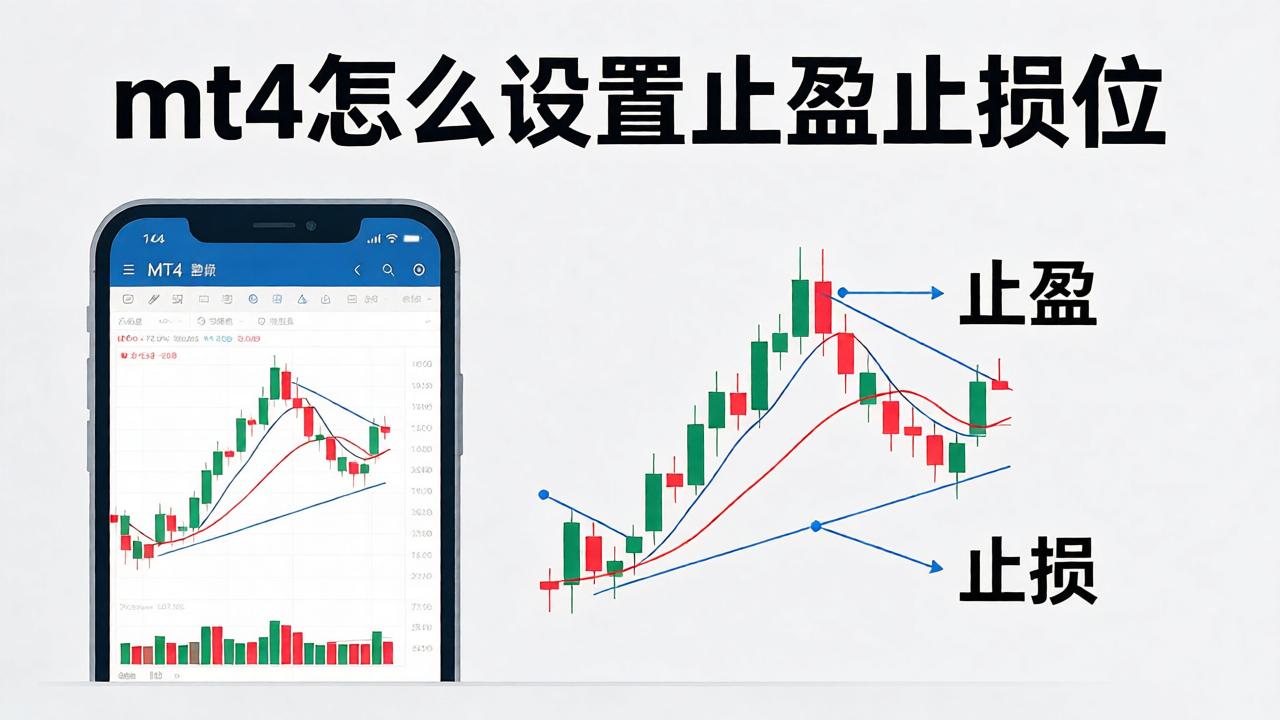
Don't be intimidated by these two terms. Simply put, they are two "automatic closing prices" you set for your order in advance:
Stop loss: when the market moves against you and your loss reaches a certain price, the system automatically closes your position for you, so you don't keep losing more. It is your "loss floor."
Take profit: when the market moves in your favor and your profit reaches a certain price, the system automatically closes your position for you, locking in the money. It is your "profit ceiling."
The benefit is straightforward: once these two prices are set, the platform watches them for you. You don't have to wake up in the middle of the night to check the charts, and you're less likely to change your mind on impulse because of emotions like "not wanting to let go" or "unwilling to accept a loss."
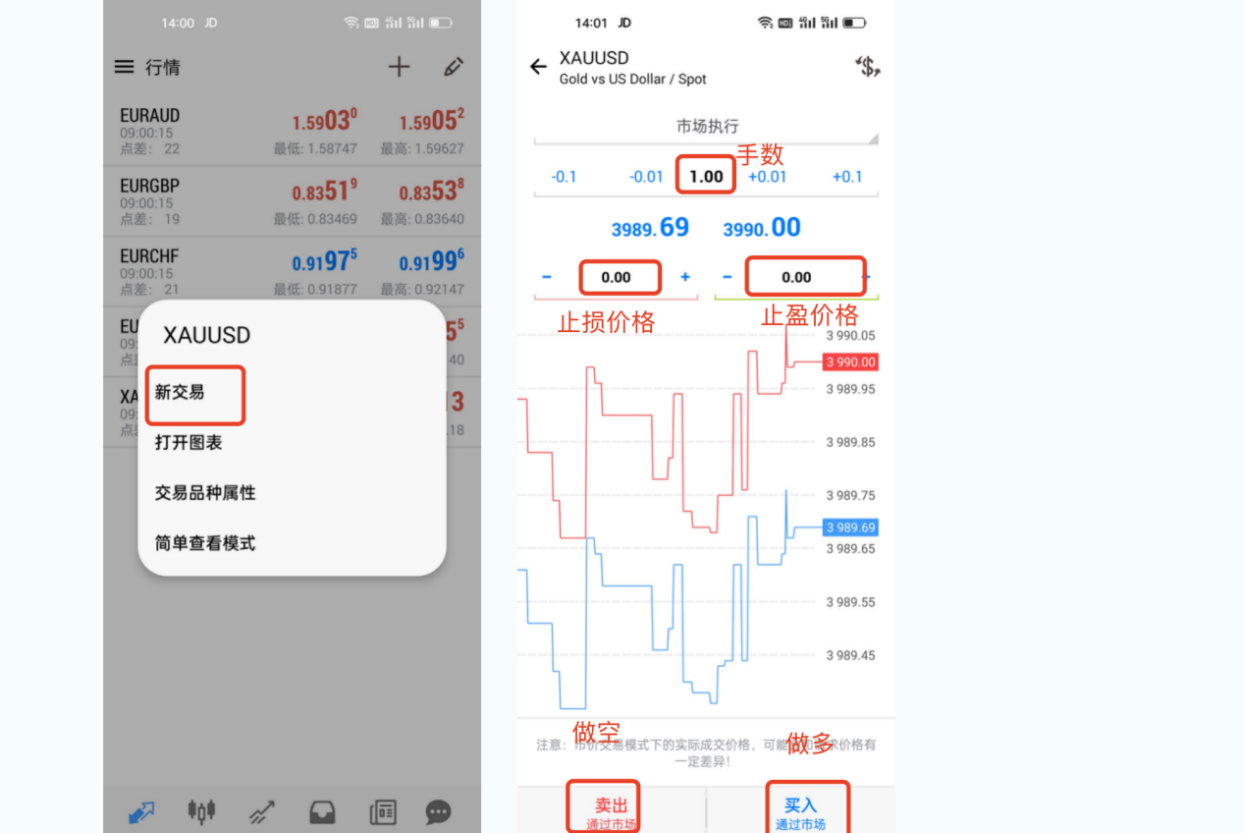
Method 1: Set them when placing the order (the easiest way; beginners are advised to use this). This is the least likely way to forget, as opening the position and setting protection are done in one step:
1. In the software's "Market Watch" window, find the instrument you want to trade and double-click it (or right-click it and select "New Order").
2. After the order window pops up, you will see fields such as "Volume," "Stop Loss," and "Take Profit."
3. Enter the price at which you are willing to accept a loss in the Stop Loss field, and the price at which you want to lock in profit in the Take Profit field.
4. Confirm that the direction and volume are correct, then click "Buy" or "Sell." The order will be placed with stop loss and take profit attached.
One thing you must not get wrong here is the direction: when going long (buying), the stop loss price should be below the current price, and the take profit price above the current price. When going short (selling), it is the opposite: stop loss above, take profit below. If you enter them the wrong way around, the platform will not let you place the order.
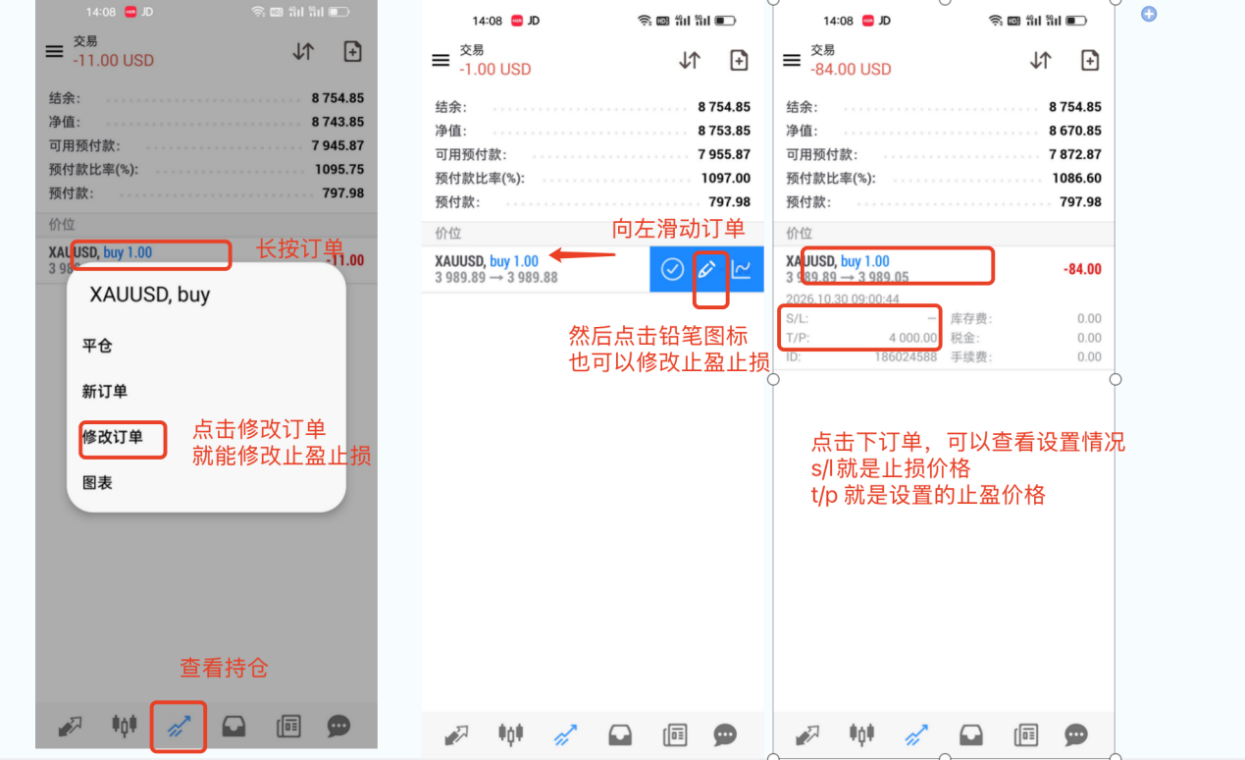
Method 2: When you realize after placing the order that you didn't set them, or you want to adjust the levels
If you forgot to set them, or you want to change the original levels, use this entry point:
1. Look at the lower section of the software, find the Trade tab, and locate the order you want to modify.
2. You can long-press the order you want to modify and you will see a "Modify Order" option. You can also tap the order and swipe left to reveal a pencil icon; tap it to modify. To cancel, simply delete the price in the field and tap "Modify."
These pitfalls trip up most beginners
Price too close to the current price, so it won't go through: MT4 has something called "stop level," which essentially draws a line for you. Stop loss and take profit cannot be too close to the current price; they must be a certain number of points away. Requirements vary by platform and instrument, with some being looser and some stricter. If you enter a price too close, the platform will pop up a message like "Invalid stops," meaning it won't go through. Move the price farther away and try again.
Always fiddling with the stop loss: after placing an order, the more it drops, the further down you drag the stop loss, thinking "just wait a little longer and it'll come back" — and the losses just keep growing. This is where many beginners stumble. Once a stop loss is set, leave it alone.
Not setting one at all: those who bet that "the market will always come back" are usually the ones who end up blowing up their accounts. Getting into the habit of setting a stop loss the moment you place an order matters more than learning any indicator.
FAQ
Q: Are my stop loss and take profit stored on my computer, or on the platform's side?
A: They are stored on the platform's servers. So even if you close MT4 or shut down your computer, they will still be executed when the price is reached — you don't need to keep the software running.
Q: What does it mean when it says "invalid stop loss"?
A: Most likely the stop loss is too close to the current price and does not meet the platform's required "stop level." Just move the price a bit further out.
Q: If I set it wrong, can I cancel it?
A: Yes. Right-click and go to "Modify Order," delete the prices in the stop loss and take profit fields, click "Modify," and they're gone.
Q: Can I set take profit and stop loss on a pending order that hasn't been filled yet?
A: Yes. When placing a pending order, you can fill in the stop loss and take profit just the same. Once the order is filled, those two levels will be attached automatically.
A final word
Setting stop loss and take profit in MT4 is not hard in itself. What's hard is the habit of remembering to set them on every order and not touching them once they're set. Tools are rigid; discipline is what keeps you alive.
Risk reminder: trading and investing involve risk. Make decisions carefully.



Discussion 0
Be the first to comment
No comments yet — say something?
Share your experience, thoughts, questions, or anything on your mind.